In this article
A friend of mine called in his coordinates after a fall on a scramble in Colorado. The helicopter flew to a point 30 miles away. He’d read his UTM numbers in the wrong order — easting and northing swapped — and the rescue team followed exactly what he gave them. He was fine, eventually. But those extra 40 minutes mattered, and the mistake was entirely preventable. UTM coordinates are the most practical navigation system for hikers using topo maps, but most people learn just enough to get confused. Here’s how UTM actually works, how to read it without errors, and why it matters when your phone is the only thing between you and a very long night.
Quick Answer: UTM (Universal Transverse Mercator) divides the world into 60 numbered zones and measures your position in meters — easting (how far east) and northing (how far north). Hikers prefer it over latitude/longitude because one UTM unit equals one meter, making distance calculations simple on any topo map. The key rule: always read right first, then up.
What UTM Coordinates Actually Are (and Why Hikers Should Care)
The System in Plain English
UTM stands for Universal Transverse Mercator. The U.S. Army Corps of Engineers developed it in the 1940s because soldiers needed a way to pinpoint locations and calculate distances that didn’t require trigonometry in the field. They built a system where one grid unit equals one meter on the ground. That simplicity is the entire point.
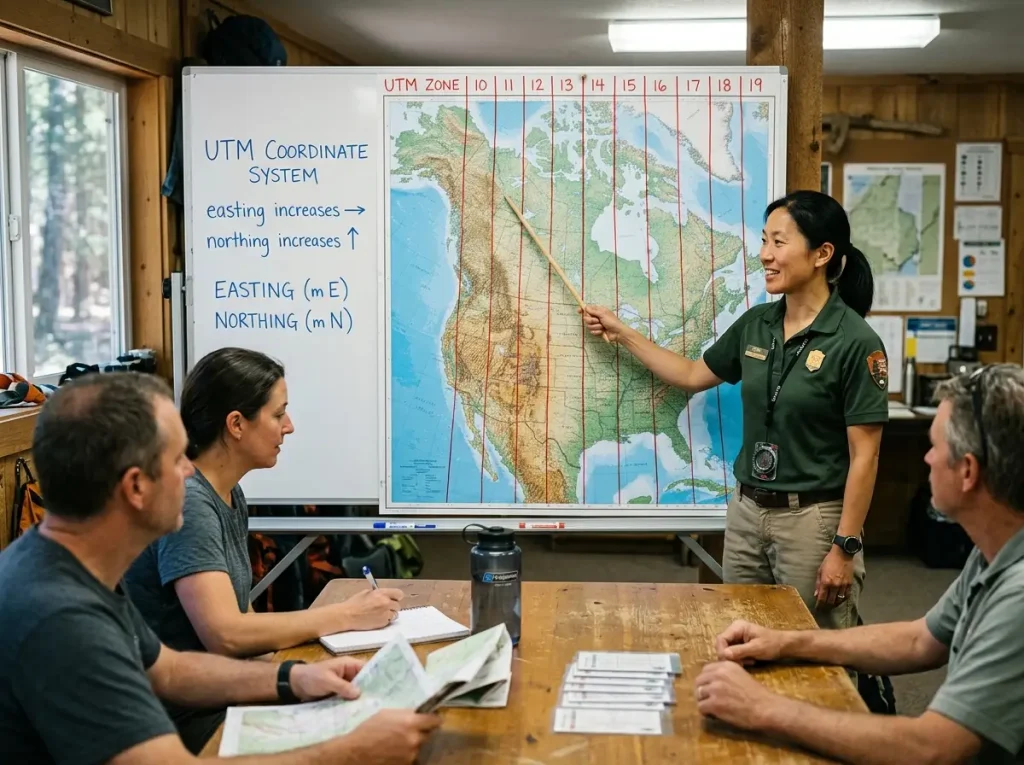
The system divides the Earth into 60 vertical zones, each 6 degrees of longitude wide, numbered 1 through 60 starting at 180° longitude (the International Date Line) and moving east. The continental United States falls within zones 10 through 19. Each zone gets its own flat grid, and within that grid, your position is defined by two numbers: an easting (how far east you are from a reference line) and a northing (how far north you are from the equator).
That’s it. Zone number, easting, northing. Three pieces of information that pin you to a specific meter on Earth.
Why It Beats Latitude/Longitude for Trail Use
Latitude and longitude work fine for global positioning. But try calculating how far you are from camp using coordinates like 39.7392° N, 104.9903° W. You’d need a calculator and a formula most people forgot after high school.
With UTM, the math is subtraction. If your easting is 502,300 and camp’s easting is 504,800, you’re 2,500 meters east of camp. No conversion, no trigonometric functions, no decimal degree headaches. That’s 2.5 kilometers — something you can estimate walking time from immediately.
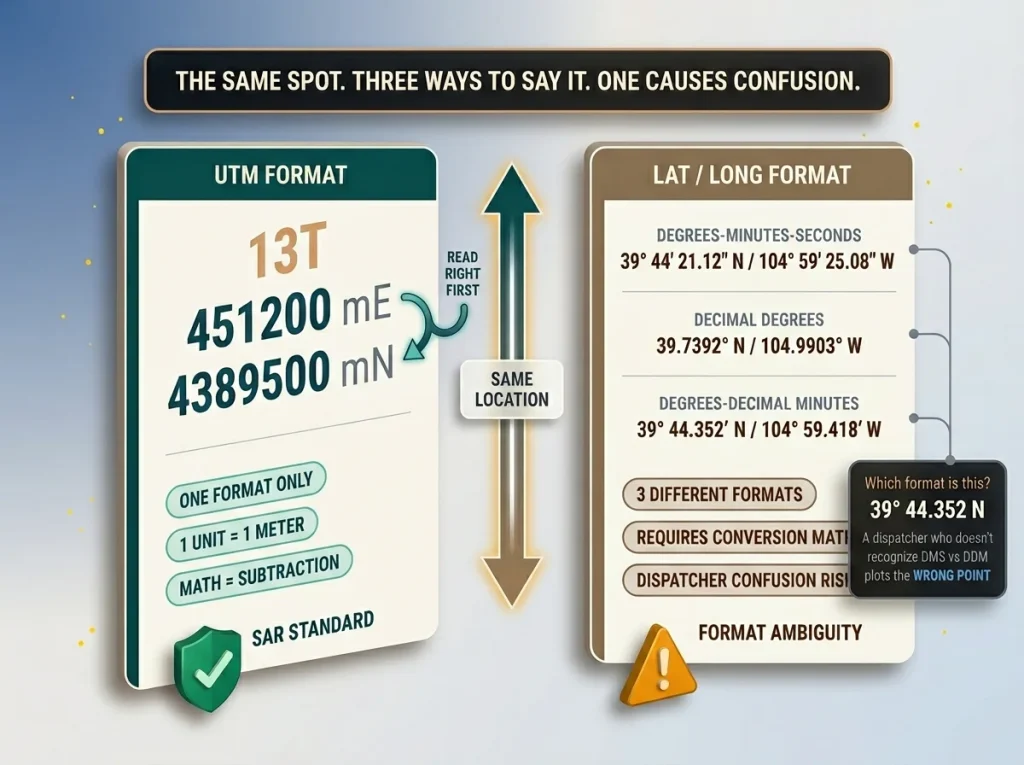
Search and rescue teams in the U.S. operate on UTM for exactly this reason. When you radio your position as “Zone 13, easting 4-5-1-2-0-0, northing 4-3-8-9-5-0-0,” there’s no formatting ambiguity. The numbers mean one thing. With lat/long, the same position can be expressed in degrees-minutes-seconds, decimal degrees, or degrees-decimal minutes — and navigation mistakes from format confusion have sent rescue teams to the wrong location more than once.
When Lat/Long Still Makes More Sense
UTM has limits. It doesn’t cover the polar regions above 84°N or below 80°S — but you’re probably not hiking there. The real practical limitation is that most online platforms, social media, and general-purpose apps default to latitude/longitude. If you’re sharing a trailhead location with a friend who doesn’t hike, lat/long is more universally understood.
The smart approach is knowing both systems and choosing the right one for the context. UTM for your paper topo map and field navigation. Lat/long for sharing locations digitally. Most GPS devices and offline hiking apps display both formats — it’s a settings toggle, not a commitment.
How UTM Zones, Eastings, and Northings Work
Zones — Your First Number
Each of the 60 UTM zones is a vertical strip of the globe, 6 degrees wide. Zone 1 starts at the International Date Line and the numbers climb eastward. If you’re hiking in California, you’re in zones 10 or 11. Colorado is zone 13. The Appalachian Trail runs through zones 17 and 18.
Your zone number is always the first part of a UTM coordinate. It tells anyone reading the coordinate which strip of Earth you’re in — the coarse filter that narrows your location from the entire planet to a 6-degree-wide band.
Most of the time, you don’t need to think about zones. If you’re hiking on a single topo map, the zone is printed in the map legend and every coordinate on that map shares the same zone number. It’s background information that becomes relevant only when you cross a zone boundary — which I’ll cover later because that’s where people actually make errors.
Eastings — Read Right
Eastings measure how far east you are within your zone. Each zone has a central meridian assigned an easting value of 500,000 meters. Points west of center have eastings below 500,000. Points east of center have eastings above 500,000. This prevents negative numbers from ever appearing — the Army didn’t want soldiers confused by minus signs under fire.
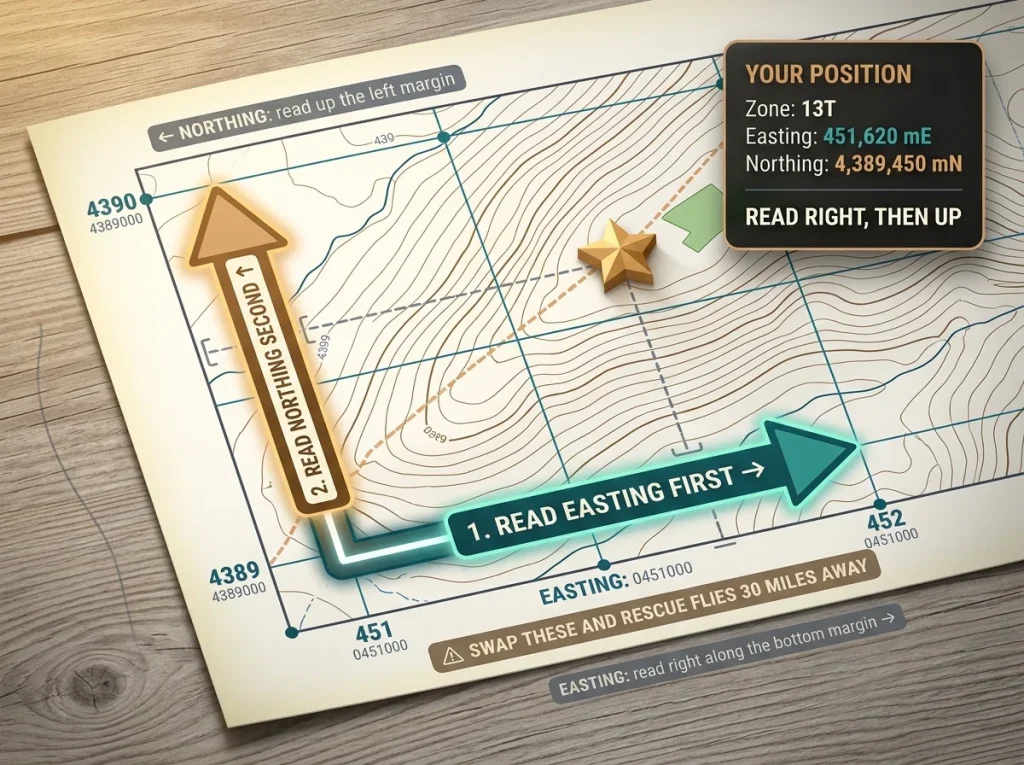
On a USGS 7.5-minute topo map, easting grid lines run vertically (north-south). The small blue numbers along the top and bottom margins tell you each line’s easting value. The numbers increase as you move right — east.
Northings — Read Up
Northings measure how far north you are from the equator, in meters. The equator has a northing of 0 (in the Northern Hemisphere). A northing of 4,389,500 means you’re 4,389,500 meters — roughly 4,390 kilometers — north of the equator.
On the topo map, northing grid lines run horizontally (east-west). The small blue numbers along the left and right margins are your northing values. They increase as you move up — north.
Pro tip: “Read Right, then Up” is the survival phrase. Easting first (read right along the bottom margin), then northing (read up along the side margin). Get this order wrong and you’ll send rescue to a point that could be dozens of miles from your actual position. It’s the most common UTM mistake, and it’s the one with real consequences.
Reading UTM Coordinates on a Paper Topo Map
Finding the Grid Lines
Every USGS 7.5-minute topographic map printed since the 1970s includes UTM grid tick marks along the margins. Some newer editions have the full grid lines printed across the map face. If your map only shows tick marks, you can draw the grid lines yourself with a straightedge — connect matching tick marks across the map to create a 1,000-meter grid.
Those 1,000-meter grid squares are your working units. Each square represents a 1 km × 1 km area on the ground. Your job is to figure out where within that square your position falls.
Plotting Your Position With a Grid Reader
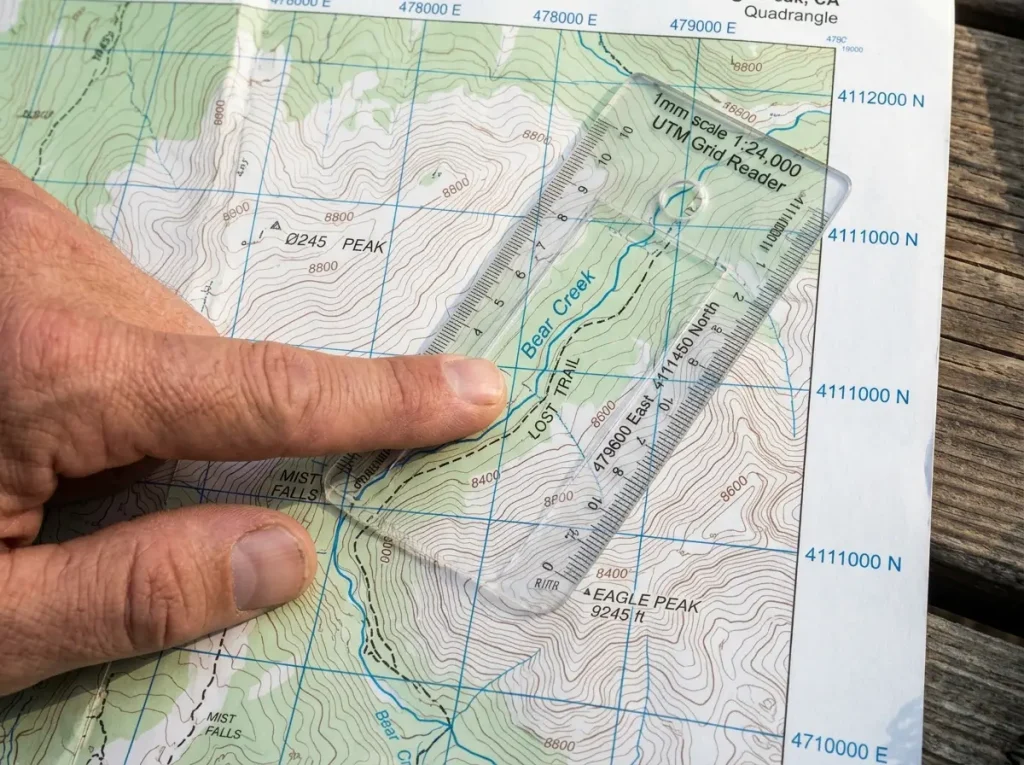
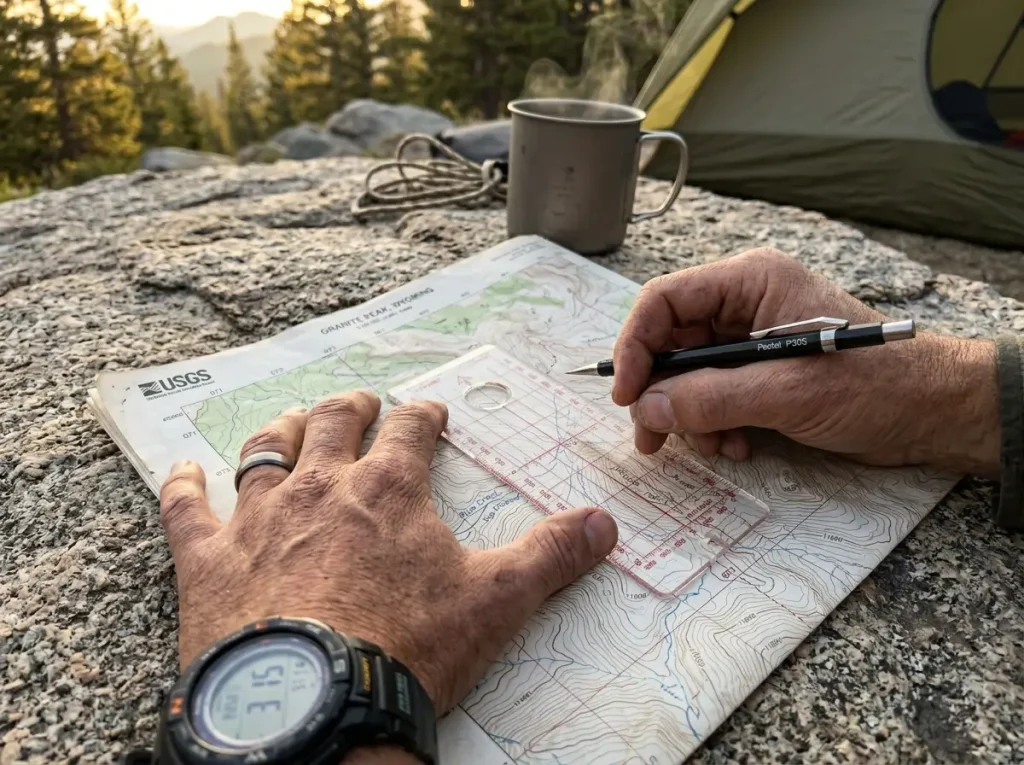
A UTM grid reader — a small clear plastic tool with graduated scales — costs about $5 and turns coordinate reading from guesswork into precision. Place the grid reader’s corner at your estimated position within the square, align the edges with the grid lines, and read the additional meters off the graduated scale.
Without a grid reader, you’re estimating by eye — dividing the 1,000-meter square into tenths and guessing which tenth you’re in. That gives you 100-meter accuracy. With the reader, you get 10-meter accuracy. In a rescue scenario, that’s the difference between searchers looking in the right clearing versus the right drainage.
How to plan a route using contour lines is the companion skill to coordinate reading — once you can plot your position on the grid, contour lines tell you what the terrain between here and there actually looks like.
Precision Levels — How Many Digits You Need
UTM coordinates come in different precision levels depending on how many digits you use:
A 6-figure grid reference (three digits easting, three digits northing) locates you within a 100-meter square. Good enough for general trail navigation — “I’m somewhere near this bend in the creek.”
A 8-figure grid reference (four digits each) narrows it to a 10-meter square. This is what search and rescue wants — “I’m at this specific flat spot beside the creek.”
A 10-figure grid reference (five digits each) pins you to a 1-meter point. Your GPS gives you this, but it’s unnecessary for most field situations — trail conditions and GPS accuracy limits make single-meter precision meaningless in practice.
For radio communication with SAR teams, 8-figure references hit the sweet spot. Accurate enough to find you, short enough to communicate clearly over a scratchy radio connection.
Pro tip: When writing UTM coordinates, always include the zone number and the full easting and northing — not abbreviated versions. “13T 0451200 4389500” is unambiguous. “451 389” is an invitation for confusion, especially under stress.
Using UTM on Your Phone and GPS Apps
Setting Your Phone to Display UTM
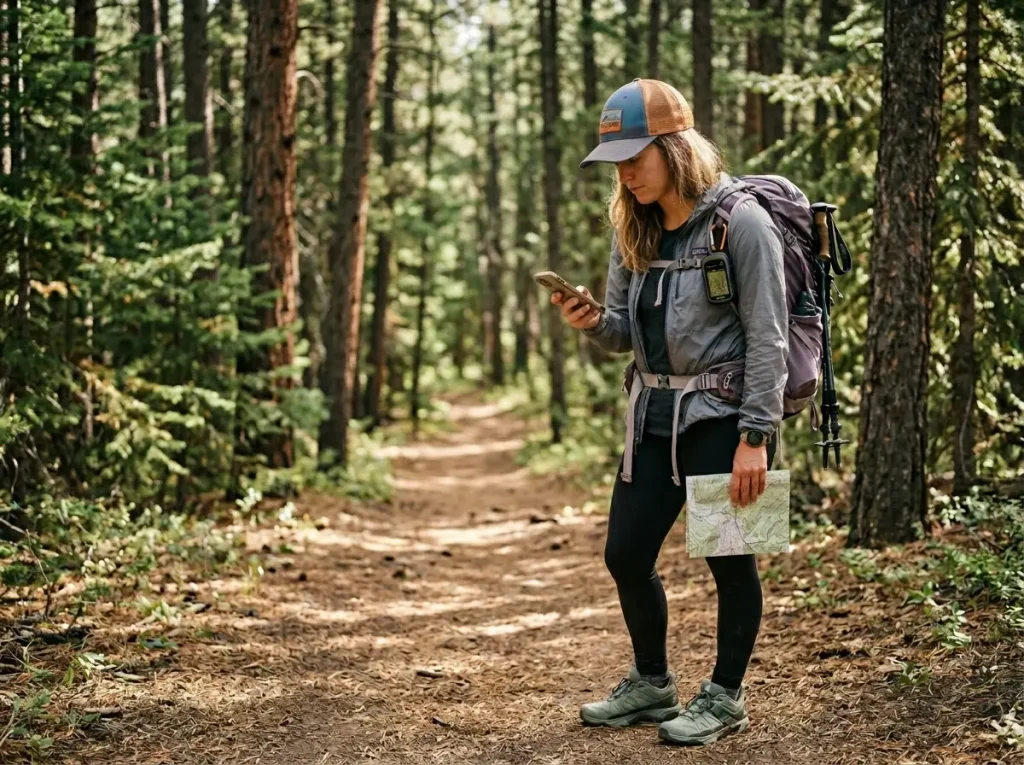
Most hikers never change their phone’s coordinate display from the default lat/long. Switching to UTM takes 30 seconds and makes your phone match your paper map — a detail that matters when you’re cross-referencing position between the two.
In Gaia GPS, go to Settings → Units → Coordinate Format → UTM. In CalTopo, click the coordinate display in the lower left corner and select UTM from the dropdown. In Avenza Maps, tap the coordinate readout and cycle through formats until UTM appears. Most Garmin handheld GPS units have the same toggle buried in Setup → Position Format → UTM/UPS.
Once set, your phone displays easting and northing values in real time as you hike. Glance at the screen, glance at the map margins, and you know exactly which grid square you’re standing in.
Offline Maps and UTM — What You Need Before You Leave Service
Your phone’s GPS receiver works without cell service — it reads satellite signals directly. But the map tiles that turn those raw coordinates into a visual position need to be downloaded beforehand. Every major offline hiking app lets you cache map areas before your trip. Do it at home on Wi-Fi.
Download the USGS topo layer specifically. Satellite imagery looks pretty but doesn’t show UTM grid lines. The topo layer includes the grid, the contour lines, and the trail markings — everything you need to correlate your phone’s digital position with the paper map in your pack.
Pro tip: Before leaving the trailhead, verify that your phone’s UTM reading matches a known point on your paper map. Stand at the trailhead marker, read the UTM coordinates on your phone, and find that same coordinate on the map. If they align, your datum settings match and you’re good. If they don’t, you have a datum mismatch — fix it now, not at mile 12. More on this problem in the next section.
Battery and Signal Realities
Your phone’s GPS works without cell signal, but it chews through battery doing it. A phone running Gaia GPS with the screen on continuous display burns roughly 15-20% per hour. On a long day hike, that’s a drained phone by mid-afternoon.
The fix is simple: check your coordinates when you need them, then lock the screen. Don’t leave GPS tracking running in the background unless you want the recorded track. Carry an external battery pack if navigation is the primary reason your phone exists on that trip.
Cold weather accelerates battery drain — lithium batteries lose capacity below 40°F. Keep the phone in an interior pocket against your chest and pull it out only for coordinate checks. This single habit can triple your effective battery life in winter conditions.
UTM for Search and Rescue — Why Format Matters
What SAR Teams Actually Use
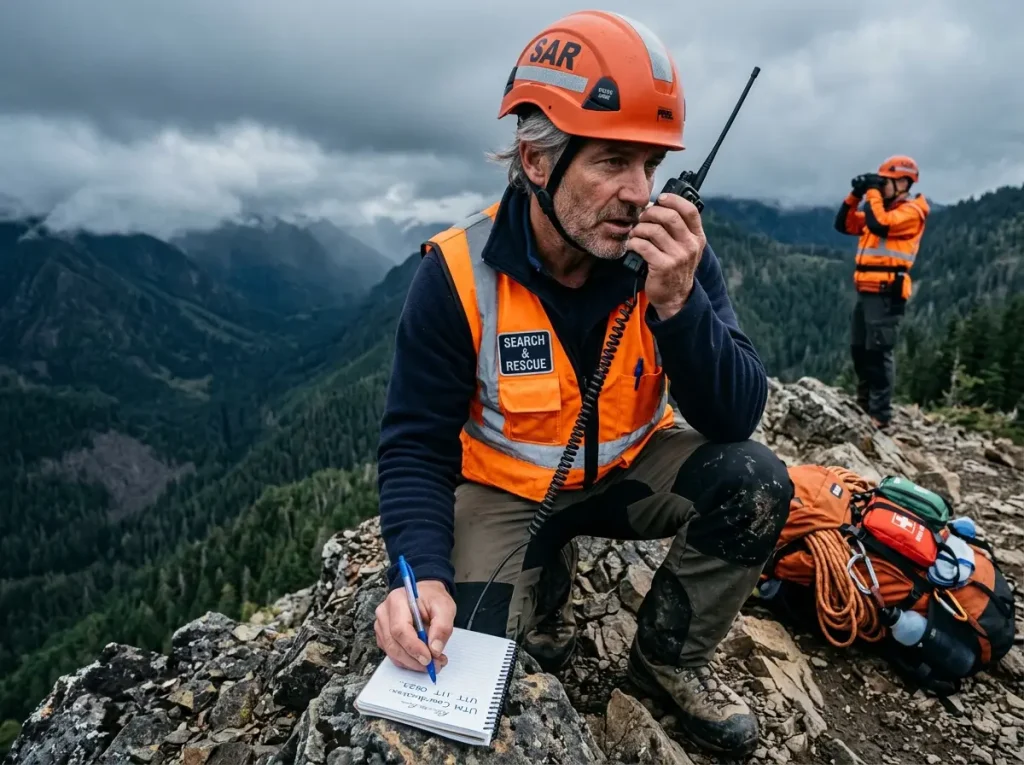
Most land-based search and rescue teams in the United States operate on UTM coordinates. The National Search and Rescue Committee recommends UTM as the standard format for ground operations because the metric grid makes search area calculations straightforward — a team can divide a zone into 1,000-meter squares and assign sectors without any conversion.
When you call 911 from the backcountry and give coordinates, UTM format gets you found faster because it eliminates format ambiguity. Lat/long can be expressed in three different notations — degrees-minutes-seconds (39° 44′ 21.12″), decimal degrees (39.7392°), or degrees-decimal minutes (39° 44.352′). A dispatcher unfamiliar with the difference can misinterpret the format and plot a wrong position. UTM has one format. One reading. One position.
That said, some 911 dispatchers are more familiar with lat/long than UTM. Know how to read both from your phone. Give UTM first, then offer lat/long as backup if the dispatcher asks for it.
How to Communicate Coordinates Under Stress
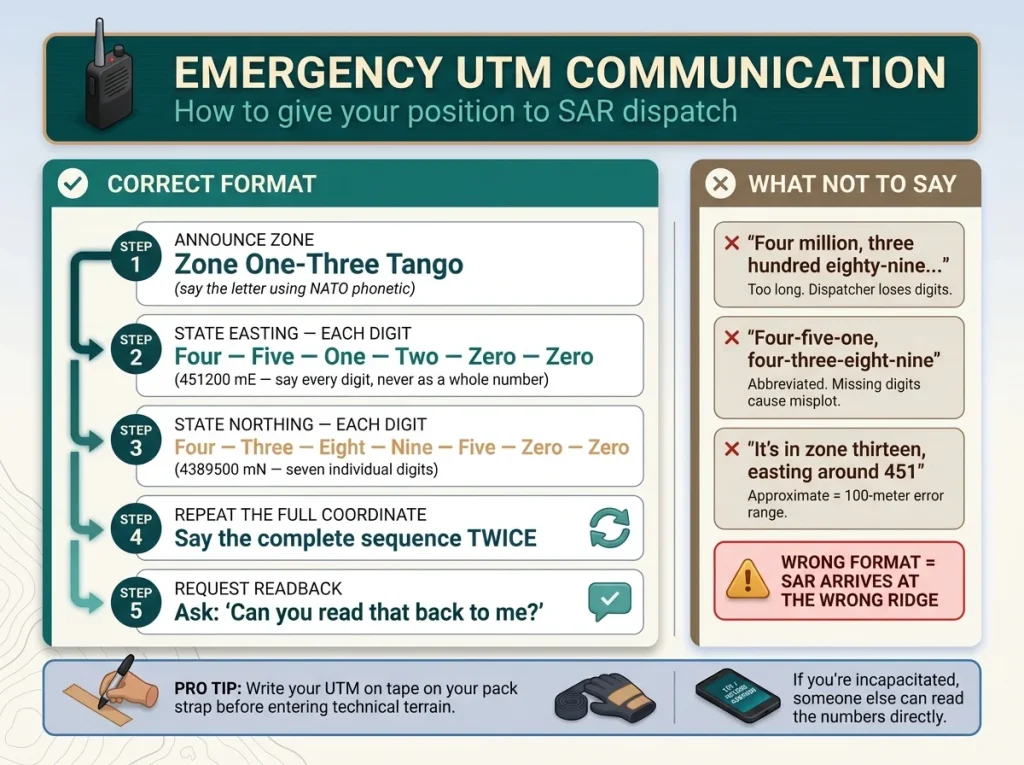
When you’re injured, cold, or scared, clear communication drops fast. Practice this format before you need it: “My position is Zone One-Three Tango, easting four-five-one-two-zero-zero, northing four-three-eight-nine-five-zero-zero.” Say each digit individually. Don’t say “four million three hundred eighty-nine thousand five hundred.” Individual digits prevent transposition errors.
Repeat the full coordinate twice. Ask the dispatcher to read it back. If you’re using a personal locator beacon or satellite messenger, the device transmits coordinates automatically — but knowing how to verbalize your position as backup is the difference between redundancy and single-point failure.
Write your coordinates on your hand or a piece of tape on your pack before entering technical terrain. If you’re incapacitated and someone else calls for you, they can read the numbers directly.
The Zone Boundary Problem (and How to Handle It)
What Happens at the Edge
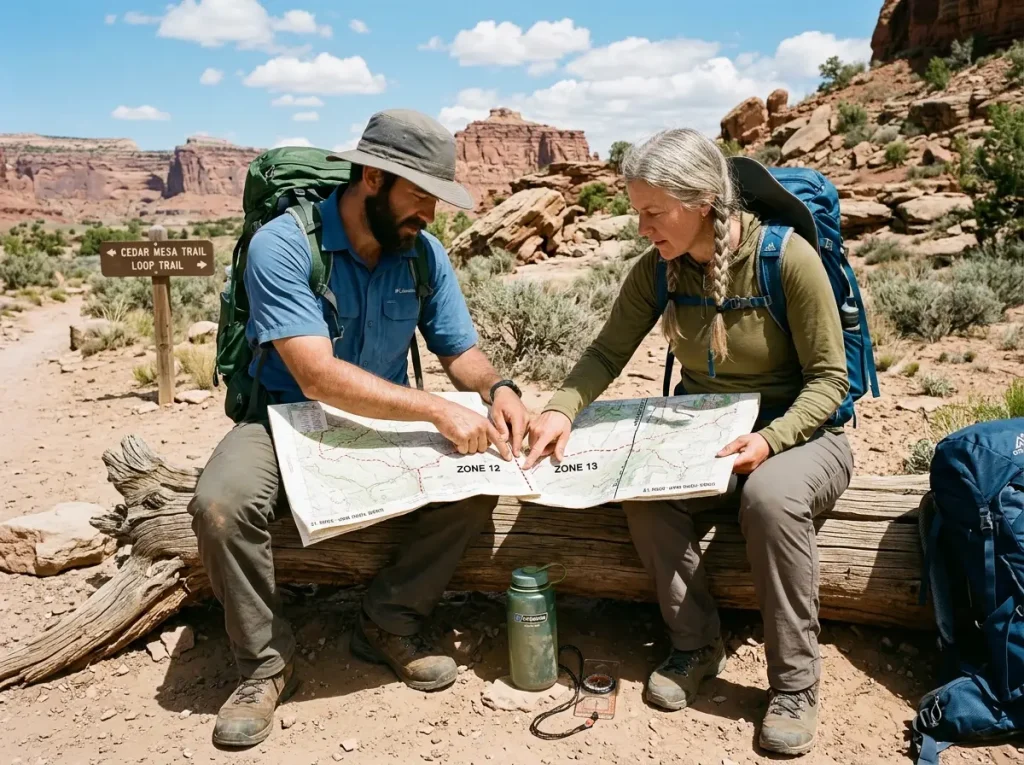
UTM zones are arbitrary lines drawn every 6 degrees of longitude. Trails don’t care about those lines. If you’re hiking near a zone boundary — and it happens more often than you’d think in the western U.S. — your coordinates behave differently on either side.
The problem is that easting values reset at each zone boundary. A position 500 meters east of the boundary in Zone 12 might have an easting of 739,800. Cross into Zone 13 and the same point has an easting of 260,200. The physical location didn’t move. The numbers jumped by hundreds of thousands of meters because each zone has its own grid.
This isn’t a theoretical issue. Hikers who plan routes across zone boundaries using UTM coordinates from a single zone get distance calculations wildly wrong. And if you’re reporting your position to SAR while near a boundary, specifying the wrong zone sends the team to a position that’s miles from where you actually are.
The Practical Fix
Most topo maps that cover an area near a zone boundary will show grid tick marks for both zones. The primary zone’s grid is printed in full, and the secondary zone’s ticks appear as smaller markings along the map edges. Use whichever zone your position falls in.
If you’re hiking across a boundary, decide before the trip which zone you’ll use as primary. Then carry maps that cover your entire route in that zone’s grid. Gaia GPS and CalTopo handle zone transitions automatically — the app adjusts the zone designation as you cross the boundary. But if you’re navigating on paper, you need to be aware of the switch and adjust your coordinate readings accordingly.
Pro tip: If you’re reporting coordinates near a zone boundary, always state the zone designator explicitly. “Zone 12, easting…” versus “Zone 13, easting…” prevents any possible confusion. Never assume the listener knows which zone you mean — they might be looking at a map in the adjacent zone.
Where Zone Boundaries Fall in the U.S.
The major zone boundaries that cross popular hiking areas include Zone 10/11 (runs through the Cascades and Sierra Nevada), Zone 12/13 (runs through central Colorado and New Mexico), and Zone 17/18 (runs through the Appalachians near Virginia). If you hike regularly in these regions, you’ll encounter zone boundaries eventually. Knowing they exist means you won’t be confused the first time your easting values don’t make sense.
The Datum Mismatch Problem Nobody Warns You About
Why Your Phone and Your Map Might Disagree
Here’s a field problem that catches experienced hikers off guard: your phone says you’re at easting 451,200, but when you plot that on your paper map, the position lands 200 meters off from where you’re obviously standing. You can see the trail junction right there, but the coordinate puts you in the trees.
The cause is a datum mismatch. A datum is the mathematical model of the Earth’s shape that a coordinate system uses as its reference. Your phone almost certainly uses WGS84 — the global standard since GPS was built. But older USGS topo maps (printed before the mid-1990s) were based on NAD27 (North American Datum 1927). The two datums model the Earth’s shape slightly differently, and the offset between them can be 100-200 meters in some areas.
This matters because 200 meters in dense forest is the difference between finding the trail and bushwhacking through deadfall. In a rescue scenario, it could mean the difference between searchers checking the right ridge and the wrong one.
How to Check and Fix It
The fix takes 10 seconds. Look at the bottom margin of your topo map. Every USGS map prints the datum it uses — usually “North American Datum 1927” or “North American Datum 1983.” If it says NAD27 and your phone is on WGS84, you have a mismatch.
Option 1: Switch your phone’s GPS datum setting to match the map. In Gaia GPS, Settings → Map Datum → NAD27. Now your phone and map speak the same language.
Option 2: Use a newer map. USGS maps printed after approximately 1994 use NAD83, which is close enough to WGS84 that the offset is negligible — usually less than 2 meters. Researching your trail before you go should include checking which datum your map uses.
Option 3: Accept the offset and mentally adjust. If you know the mismatch exists and is consistent (always roughly 150 meters northwest in your area, for example), you can account for it. But this is sloppy — the first two options are better.
The Quick Trailhead Verification
Stand at a known point — a trailhead sign, a trail register, a mapped bridge — and compare your phone’s UTM readout to the same point plotted on the map. If they match within 10-20 meters, your datums are aligned. If there’s a consistent offset, you’ve found a mismatch. Fix it before you leave the trailhead, not when you’re lost.
A Practice Drill You Can Do Before Your Next Hike
The Kitchen Table Exercise (15 Minutes)
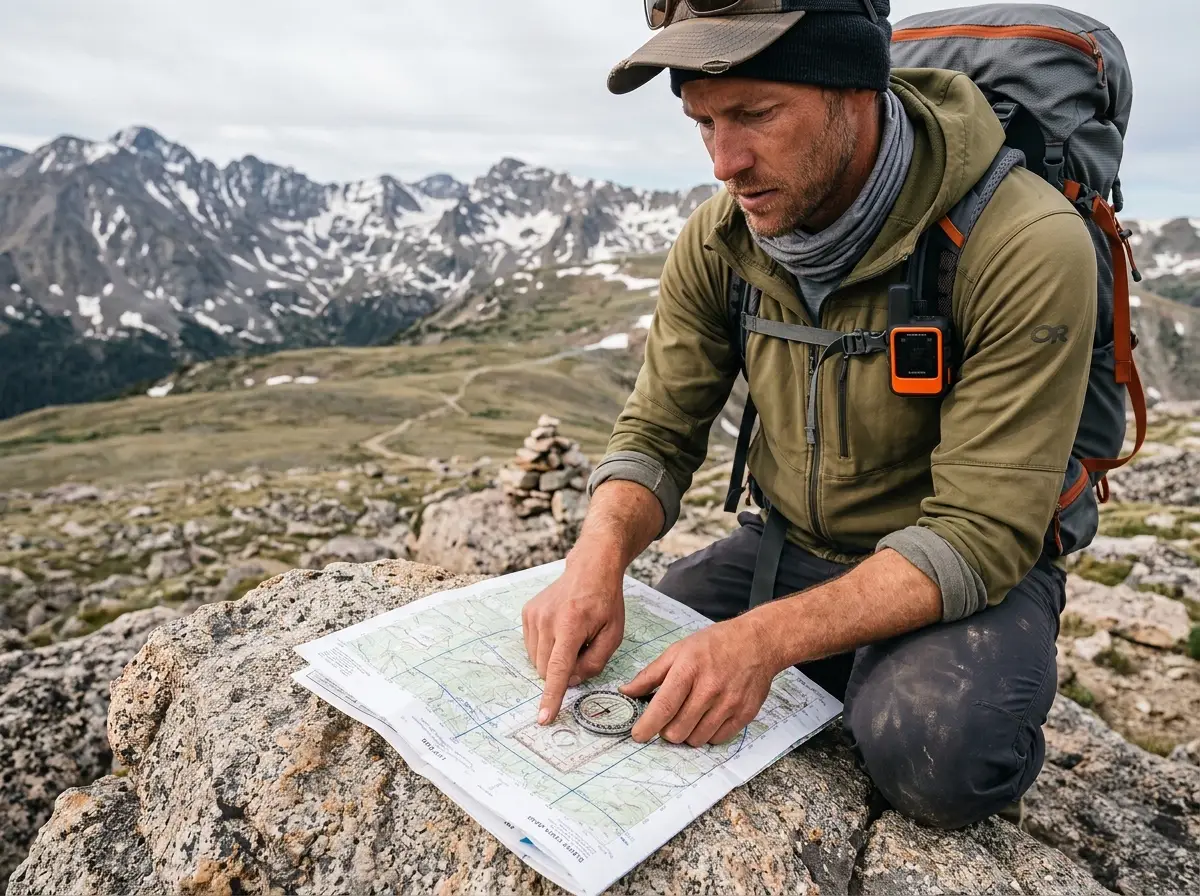
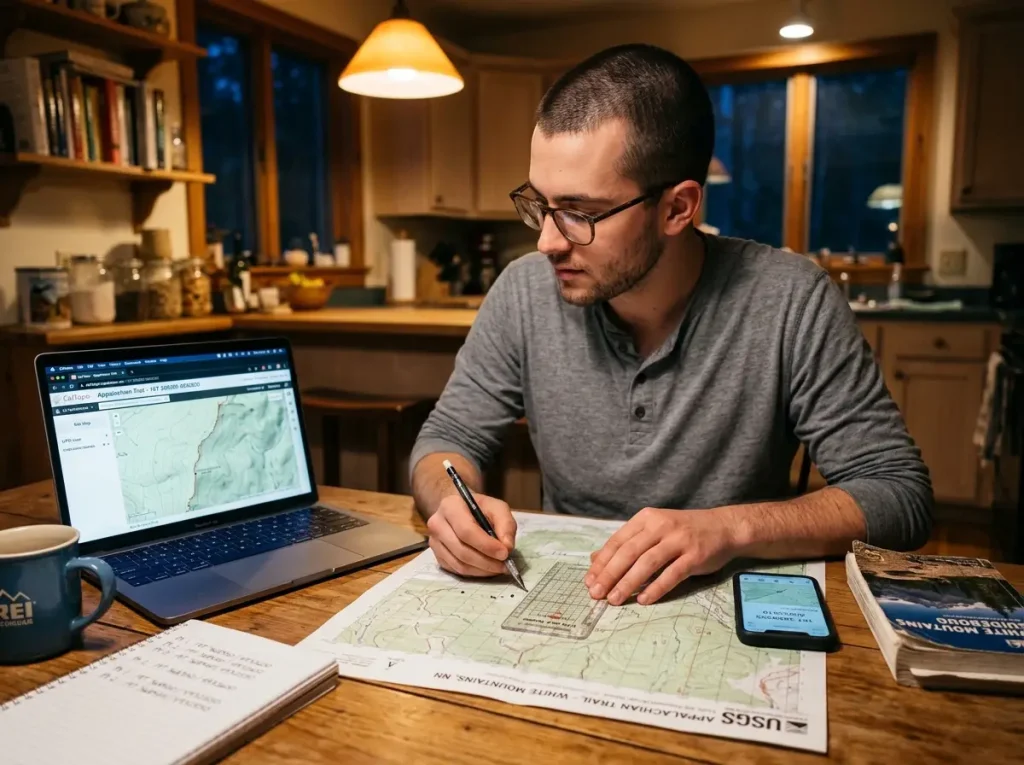
Print or buy the USGS topo map for a trail you know well — one you’ve hiked multiple times and could visualize with your eyes closed. Spread it on your kitchen table with a UTM grid reader and a pencil.
Pick five familiar landmarks on the trail — the parking lot, the first creek crossing, the switchback where the trail turns north, the overlook with the view, and the junction where you always refill water. For each one, read the full UTM coordinate: zone, easting, northing. Write them down.
Now open CalTopo or Gaia GPS on your computer, search for the same trail, and switch to UTM display. Compare your hand-plotted coordinates to the digital ones. They should match within 100 meters. If they’re off, figure out where your reading went wrong — did you transpose the easting and northing? Misread a digit? Start from the wrong grid line?
This exercise builds the muscle memory that makes UTM instinctive instead of theoretical. Fifteen minutes at home prevents fifteen minutes of confusion on trail.
The Trailhead Calibration (First 10 Minutes of Your Hike)
Your next hike, do this at the trailhead: pull out your phone and paper map side by side. Read your phone’s UTM coordinate, then find that exact point on the map. If they match, your datum settings are aligned and you’re good to go. If they don’t, troubleshoot now — check the map’s datum in the legend and adjust your phone settings.
Then hike to the first obvious landmark — a trail junction, a bridge, a creek crossing — and repeat the comparison. Two matching data points confirm your system works. This takes five minutes and gives you total confidence in your navigation for the rest of the day.
Planning your day hike from scratch already includes map study — adding UTM practice to that process makes it a navigation skill session, not just a logistics check.
Pro tip: Practice reading UTM coordinates on a map you know before using them on a map you don’t. Familiarity with the terrain lets you check your readings against reality. Once you trust the system on known ground, you’ll trust it when the ground is unfamiliar and the stakes are higher.
Conclusion
UTM coordinates exist to do one thing: pin your location to a specific meter on Earth using numbers anyone can read, communicate, and plot. The system works because one unit equals one meter, there’s only one format, and the math is subtraction instead of trigonometry.
Learn the “Read Right, then Up” rule and practice it at home on a map you know. Match your phone’s datum to your paper map at the trailhead. And when you communicate your position — to a hiking partner, to a dispatcher, to SAR — say each digit individually, twice, and get a readback.
The hikers who get found fast aren’t the ones with the fanciest GPS devices. They’re the ones who can read a grid, say the numbers clearly, and give rescue teams a position that actually matches where they’re standing.
Q1 What are UTM coordinates and how do they work?
UTM divides Earth into 60 zones and locates you using two numbers — easting (meters east) and northing (meters north). One unit equals one meter, making distance calculations simple subtraction on any topo map.
Q2 How do you read UTM coordinates on a map?
Read right first, then up. Find your easting along the bottom margin (right), then your northing along the side margin (up). Use a plastic grid reader for 10-meter accuracy instead of estimating by eye.
Q3 Is UTM more accurate than GPS latitude longitude?
Neither is more accurate — they describe the same location in different formats. UTM is easier to use for ground navigation because one unit equals one meter, while lat or long requires conversion formulas for distance.
Q4 What format should I use to report my location to search and rescue?
Use UTM — most U.S. land-based SAR teams operate on it. Say each digit individually: Zone one-three tango, easting four-five-one-two-zero-zero. Have the dispatcher read it back. Offer lat or long as backup if asked.
Q5 How do I find my UTM coordinates on my phone?
Open Gaia GPS, CalTopo, or Avenza Maps and change the coordinate format to UTM in settings. Your phone’s GPS shows easting and northing in real time — no cell service needed, just satellite signal.
Risk Disclaimer: Hiking, trekking, backpacking, and all related outdoor activities involve inherent
risks which may result in serious injury, illness, or death. The information provided on The Hiking Tribe is for
educational and informational purposes only. While we strive for accuracy, information on trails, gear, techniques,
and safety is not a substitute for your own best judgment and thorough preparation. Trail conditions, weather, and
other environmental factors change rapidly and may differ from what is described on this site. Always check with
official sources like park services for the most current alerts and conditions. Never undertake a hike beyond your
abilities and always be prepared for the unexpected. By using this website, you agree that you are solely
responsible for your own safety. Any reliance you place on our content is strictly at your own risk, and you assume
all liability for your actions and decisions in the outdoors. The Hiking Tribe and its authors will not be held
liable for any injury, damage, or loss sustained in connection with the use of the information herein.
Affiliate Disclosure: We are a participant in the Amazon Services LLC Associates Program, an
affiliate advertising program designed to provide a means for us to earn advertising fees by advertising and linking
to Amazon.com. As an Amazon Associate, we earn from qualifying purchases. We are also an official affiliate partner
of Black Diamond Equipment via the AvantLink network. If you click on a Black Diamond affiliate link and make a
purchase, we may earn a commission at no additional cost to you. We also participate in other affiliate programs and
may receive a commission on products purchased through our links. Additional terms are found in the terms of
service.