In this article
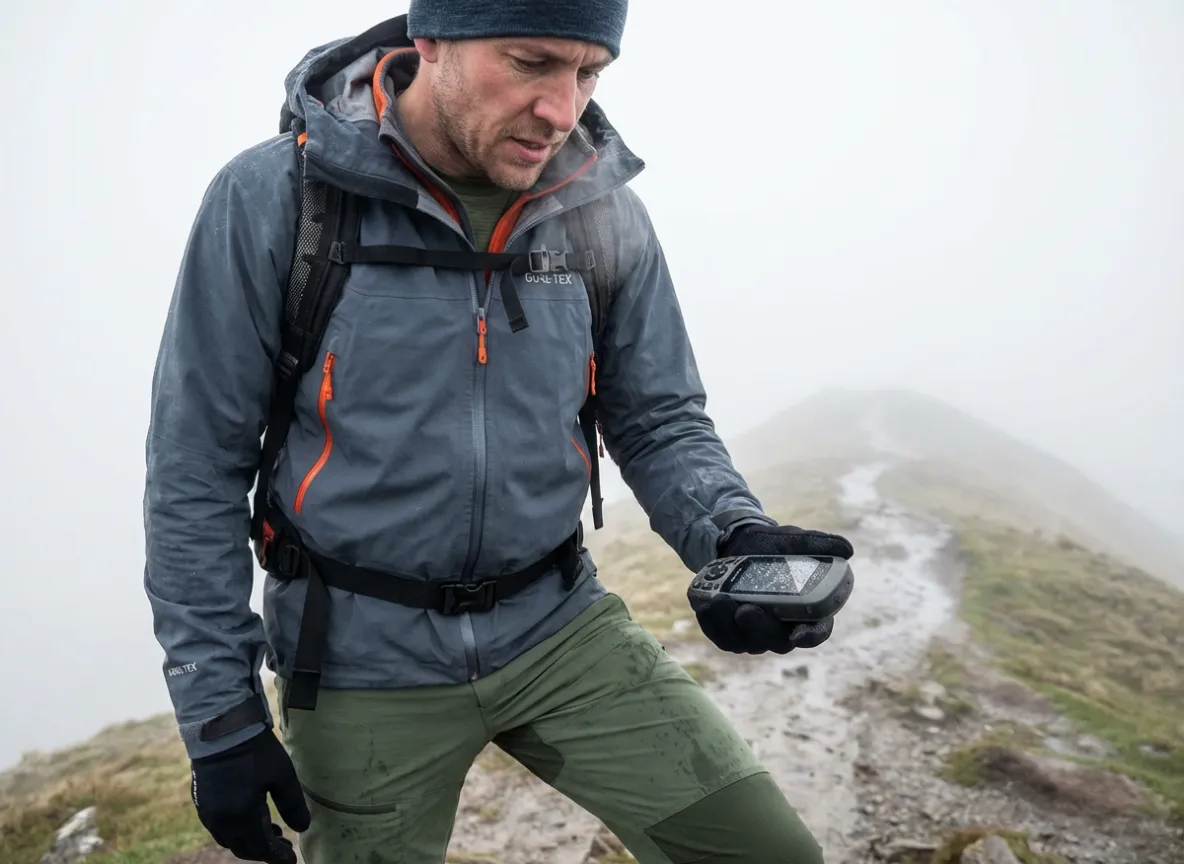
A whiteout on a ridgeline does not care about your memory or your optimism; it only respects data. When the physical trail dissolves into snow or fog, the “Red Line” on your device transforms from a simple computer file into your primary lifeline.
Creating a GPX file is not just a digital housekeeping task for the tech-savvy. It is the act of engineering your own safety net before you ever step foot on the trailhead. In my years teaching outdoor navigation, I have seen too many rescues initiated because a hiker relied on a vague plan rather than precise geometry.
This guide bridges the gap between digital planning and wilderness survival. We will ensure the line on your screen matches the reality under your boots. We will cover the taxonomy of geospatial data, preventing the common route vs. track errors that plague novice users.
We will then dissect the three pillars of creation: the open-source precision of gpx.studio, the ecosystem power of Gaia GPS/CalTopo, and the necessary conversion hacks for Google Maps. Finally, we will address hardware ingestion—solving the dreaded “200-point limit” on devices like the Garmin Fenix—and data hygiene, ensuring your digital footprint doesn’t compromise your physical safety or privacy.
Understanding the GPX Standard: What Are We Actually Building?

To avoid navigation failure in the field, you must first understand the XML architecture of the file you are building. A GPX (GPS Exchange Format) file is a text file containing latitude and longitude coordinates, but how those coordinates are categorized changes how your device interprets them. While you might encounter .kml or .kmz files from Google Earth, the .gpx file extension remains the gold standard for handheld units.
What is the Difference Between a Route, a Track, and a Waypoint?
The distinction lies in density and intent. A Waypoint () is a static, zero-dimensional anchor—think of a water source, campsite, or summit—that exists independently of your movement.
A Route () is a sequence of waypoints that implies future intent. It relies on the GPS device’s internal “brain” to calculate the path between points. This is similar to how Google My Maps functions, connecting dots with straight lines or road-based logic.
Conversely, a Track () is a high-fidelity recording or simulation consisting of thousands of “breadcrumbs” (trackpoints or ). These points force the device to follow specific geometry, regardless of the underlying map data.
Most modern hikers should create Tracks, not Routes. Tracks provide turn-by-turn geometry that functions correctly even when your device’s internal map is outdated or lacks the specific trail you are hiking. Legacy devices, like the Garmin Dakota 20, often have strict limits on “Route Points” (e.g., 250 max), whereas Tracks can support 10,000+ points.
Pro-Tip: If you upload a “Route” to a watch without a base map, you will suffer from “straight line syndrome,” where the device draws a direct line across a canyon, ignoring switchbacks. Always export as a Track to force the device to respect the terrain.
Once you grasp the architecture of the data, you can better apply the USGS standards for digital geospatial data to your personal planning. However, raw data is useless without context. Understanding these file types is the digital equivalent of learning to read the land itself, a skill detailed in our topographic map guide for hikers.
Method A: The Open-Source Gold Standard (Browser-Based Creation)
For pure track creation without subscription fees, browser-based open-source tools offer the highest fidelity.
How Do You Create a Track from Scratch Using gpx.studio?
gpx.studio allows you to draw route from scratch or edit track points on complex paths by leveraging global datasets. Open the tool in a browser—it is a free online gpx editor with no ads or paywalls. Select “New GPX” and ensure the routing engine is set to “Mapbox Outdoors” or “OpenStreetMap” (OSM) to utilize trail-specific topology.
Click the “Routing” icon (magnet symbol) to enable “snap-to-trail,” then click your Start Point and subsequent anchor points. The software will automatically generate the track geometry between them. If you are venturing off-trail for advanced trekking, switch the routing mode to “Crow Flies” to manually draw the path point-by-point.
The most critical step occurs before export: use the “Elevation” tool to query a global Digital Elevation Model (DEM). Without this step, your output file will lack vertical data (elevation data inside the tag), resulting in a “0 ft gain” reading on your watch.
You can also use the “Edit” function to reverse the direction of a track. This is useful if you are downloading a one-way trail from Strava or AllTrails that you intend to hike in reverse. Additionally, the platform allows for “Segment Merging,” enabling you to stitch together multiple disparate trails into a single, cohesive thru-hike itinerary file.
While this tool is robust, relying on indicators for the quality of OpenStreetMap data is essential. The crowd-sourced nature of OSM is generally excellent. However, verifying it against other best free hiking apps provides a necessary layer of redundancy.
Method B: The Ecosystem Approach (Planning with Topographic Context)
While browser tools offer precision, many explorers prefer to plan within an ecosystem that offers richer topographic context. This includes data such as snow depth, private land boundaries, or burn zones, often missing from lighter apps like Komoot or RideWithGPS.
How Can You Plan Multi-Day Routes in Gaia GPS and CalTopo?
Planning in these ecosystems begins with data layers. In Gaia GPS or CalTopo, stack relevant layers such as “Public Lands” to avoid trespassing. Add “Slope Angle Shading” to identify avalanche terrain or steep scrambles for off-trail trekking.
Use the “Create Route” tool to snap points to existing trails. Gaia’s “Folder” system is particularly useful for organizing multiple segments—Day 1, Campsite A, Water Source—into a single collection, effectively handling POI assignment.
If using CalTopo, utilize the “Resample” feature during export to decimate the track to a specific point count (e.g., 500 points). This is essential for older GPS units that cannot process high-resolution files.
Be aware that these ecosystems often save data as proprietary “Routes” internally. You must specifically select “Export as GPX Track” to ensure format compatibility with third-party watches.
Always verify the “Profile” view or elevation chart in these apps to ensure the calculated elevation gain matches reality. Map glitches can sometimes cause “vertical spikes” in the data.
Using these robust tools aligns with National Park Service mapping resources regarding land use and boundaries. For a deeper look at how these platforms stack up against one another, read our comparison of Gaia vs. AllTrails.
Method C: The “Google Maps Hack” (Conversion Workflows)
Sometimes, you simply want to hike a path that Google Maps has identified, despite its limitations for wilderness travel.
Is It Possible to Convert Google Maps Directions to a GPX File?
Yes, but it requires a conversion workflow. Create a route in Google Maps using “Walking” mode, then copy the full URL from the browser’s address bar.
Paste this URL into a conversion tool like Mapstogpx.com or GPS Visualizer. Ensure you look for “Advanced Settings” to find elevation options, though they are rarely perfect. Download the resulting file, which converts the Google “Polyline” format into a standard GPX container.
Critical Warning: Google Maps data lacks Z-axis (elevation) information by default. You must run the resulting file through GPS Visualizer’s “Add DEM elevation data” tool. If you skip this, your GPS unit will treat the hike as perfectly flat.
Also, Google’s routing algorithms prioritize paved paths and often ignore safer, scenic single-track trails.
This method works for urban hiking trails or rail-trails but is dangerous for deep wilderness navigation. The accuracy of consumer GPS devices relies on good data input. Google Maps is designed for cars and sidewalks, not ridges and ravines.
Troubleshooting and Hardware Ingestion: Bridging the Gap
A file created is useless if it cannot be read. The final hurdle is moving the data from the cloud to the wrist without corruption.
Why Won’t My GPX File Load on My Garmin or Coros Device?
Ingestion failures usually stem from data limits or format compatibility errors.
- The 200-Point Limit: Many Garmin devices, and even some Suunto models, possess a hard limit of 200 “Course Points” (turn cues). Use a tool like PlotARoute or CalTopo to “Reduce Course Points” while keeping the high-resolution “Track Points” (geometry) intact.
- FIT Conversion: Garmin Connect automatically transcodes GPX to .fit format. If the XML header is non-standard or contains proprietary extensions from apps like Strava, the upload will fail. Tools like GPX Babel can scrub these files.
- Coros “Flattening”: Coros apps struggle with GPX files containing multiple unconnected segments. Use gpx.studio to “Merge” all segments into a single track before uploading.
GPX Compatibility & Error Resolution
Expert solutions for common GPS file issues across major sports watch platforms
Garmin & Suunto
Use PlotARoute or CalTopo to “Reduce Course Points” while keeping high-resolution Track Points to stay within hardware limits.
Coros & Apple
Coros: Reduce points during sync to prevent data truncation. Apple: Handles massive GPX files natively without issues.
Synthetic Injection
Garmin, Coros, and Suunto require gpx.studio to inject synthetic time data/timestamps for “Virtual Partner” features and app acceptance.
Apple Support
WorkOutDoors acts as a robust backup; it handles files natively even if they lack time or elevation metadata.
Scrubbing Tools
Scrub files with GPX Babel to remove proprietary extensions (e.g., from Strava) before uploading to Garmin, Coros, or Suunto.
Parser Robustness
Apple (WorkOutDoors) is highly robust and typically parses non-standard XML or headers without error.
Flattening Process
Use gpx.studio to “Merge” all unconnected segments into a single track to avoid “Ingestion Failure” in Garmin Connect and Coros.
Native Handling
Apple natively handles complex GPX files containing multiple unconnected segments without requiring pre-upload merging.
Timestamp requirements can also cause issues. Some features, like “Virtual Partner,” require timestamps inside the tags. If you planned the route in CalTopo or used old desktop software like Garmin BaseCamp, it might lack this data.
The fix is to use gpx.studio’s “Time” tool to inject synthetic timestamps based on a target average speed (e.g., 3 mph). Conversely, the WorkOutDoors app on Apple Watch handles massive GPX files natively, making it a robust backup.
Hardware compatibility extends beyond watches; it is equally critical for satellite communicators. Understanding these data limits is vital when comparing devices like inReach vs SPOT, both of which rely on accurate GPS data. Precise timing standards, such as those maintained by the National Institute of Standards and Technology, underpin the synchronization required for these devices to function.
Advanced Engineering: Repair, Privacy, and Data Hygiene
The ethical hiker ensures their file is responsible—protecting both their privacy settings and the trail itself.
How Do You Strip Privacy Data or Fix Corrupted Timestamps?
Before sharing a recorded track to public forums, you must practice digital hygiene. Geofencing involves cropping the start and end points of your track to at least 0.5 miles from your home or car location. This prevents “digital stalking.”
To turn a personal recording into a generic route, you should strip the tags entirely. This removes your pace, stop times, and date, leaving only the spatial geometry.
For manual XML editing, open the GPX file in a text editor (like Notepad or Notepad++). Use a Regular Expression (Regex) find-and-replace to delete all time data or heart-rate extensions. This allows you to clean up messy gps tracks with surgical precision.
Pro-Tip: If a file is “corrupted” and won’t open, copy the header (<?xml… <gpx…) from a known working file and paste it over the header of the broken file. This simple transplant often fixes XML namespace errors that confuse parsers.
Finally, practice digital stewardship. Do not publish off-trail routes to sensitive archaeological sites. This aligns with mastering outdoor ethics and the core Leave No Trace Principles.
Conclusion
The “Red Line” on your GPS is a tool, not a savior. Always prefer creating Tracks over Routes for device-independent navigation that resists map errors.
Remember that a GPX file without DEM data is dangerous; always verify vertical profiles in tools like CalTopo or gpx.studio before departure. Finally, strip your home coordinates and personal biometrics before sharing files with the community.
Download a local trail map, open gpx.studio, and build your first custom track today. Sanity check it against a topo map, and take control of your navigation.
FAQ – Frequently Asked Questions
What is the best free tool to create GPX files?
gpx.studio is widely considered the gold standard for browser-based editing. It is a free online gpx editor, open-source, and integrates seamlessly with OpenStreetMap data without requiring a subscription.
Can I create a GPX file on my smartphone?
Yes, apps like Gaia GPS, OsmAnd, and Footpath allow you to draw routes on a touchscreen and export them as GPX files. However, desktop precision is usually better for complex gps route planning.
Why does my GPX file show 0 elevation gain?
This happens when the file contains only 2D coordinate data (Latitude or Longitude) but misses the Z-axis (Elevation). You must use a tool with a Replace Elevation or Look up Elevation feature to inject DEM data into the file.
Is it safe to use GPX files from other users?
Not blindly. User-generated files may follow social trails, cross private property, or traverse seasonal hazards (like avalanche zones). Always verify a downloaded GPX file against a trusted topographic map before following it.
Risk Disclaimer: Hiking, trekking, backpacking, and all related outdoor activities involve inherent risks which may result in serious injury, illness, or death. The information provided on The Hiking Tribe is for educational and informational purposes only. While we strive for accuracy, information on trails, gear, techniques, and safety is not a substitute for your own best judgment and thorough preparation. Trail conditions, weather, and other environmental factors change rapidly and may differ from what is described on this site. Always check with official sources like park services for the most current alerts and conditions. Never undertake a hike beyond your abilities and always be prepared for the unexpected. By using this website, you agree that you are solely responsible for your own safety. Any reliance you place on our content is strictly at your own risk, and you assume all liability for your actions and decisions in the outdoors. The Hiking Tribe and its authors will not be held liable for any injury, damage, or loss sustained in connection with the use of the information herein.
Affiliate Disclosure: We are a participant in the Amazon Services LLC Associates Program, an affiliate advertising program designed to provide a means for us to earn advertising fees by advertising and linking to Amazon.com. As an Amazon Associate, we earn from qualifying purchases. We also participate in other affiliate programs and may receive a commission on products purchased through our links, at no extra cost to you. Additional terms are found in the terms of service.